


How to Use DeepSeek for Coding: The Complete Free VS Code Guide
If you’ve been looking for a powerful alternative to GitHub Copilot, you are in the right place. Developers everywhere are switching tools, and the biggest question right now is: how to use DeepSeek for coding directly inside their editors?
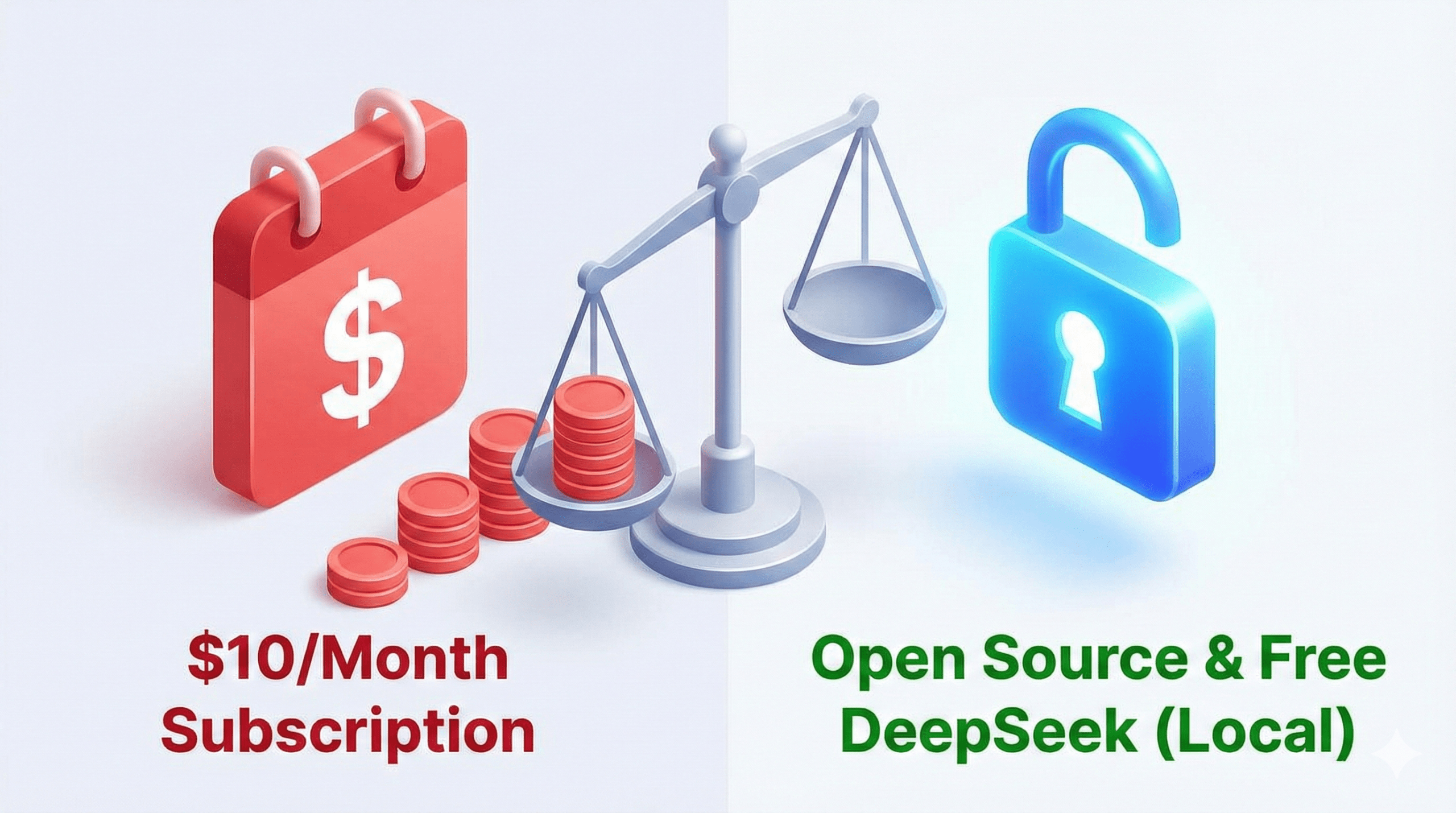
I was tired of paying expensive monthly subscriptions, so I tested this open-source model. The result? It is fast, accurate, and best of all, it is completely free.
In this guide, I will walk you through the exact setup to connect DeepSeek V3 with VS Code. Let’s get your new workflow ready in the next 5 minutes.
What Makes DeepSeek Powerful for Coding?
Before we install it, let’s understand why this model is trending. DeepSeek isn’t just “another AI”, it is architecturally designed specifically for speed and handling massive codebases.
Here is why developers are switching:
1. Unmatched Speed (The MoE Advantage)
DeepSeek runs on a unique Mixture-of-Experts (MoE) architecture. Unlike older models that use their entire “brain” for every small task, DeepSeek only activates the specific experts needed for your code.
- The Benefit: It generates code significantly faster than GPT-4 while using fewer resources.
- For You: No more lag while waiting for autocomplete suggestions.
2. Massive 128k Context Window (Repo-Level Understanding)
One of the biggest frustrations with free AI tools is that they “forget” your code once the file gets too long. DeepSeek solves this with a massive 128,000 token context window.
- What this means: You can feed it entire documentation files or multiple scripts at once.
- The Result: It doesn’t just guess, it understands your entire project structure across different files.
3. Superior Debugging & Logic Reasoning
DeepSeek isn’t just for writing new scripts; it is an elite debugger. On key benchmarks like HumanEval, DeepSeek-V2-Coder has outperformed many premium models.
- How it helps: You can paste a complex error log, and instead of a generic fix, it traces the logic back to the source and explains why it broke.
4. 100% Privacy & Control (Local LLM Support)
This is the killer feature for freelancers who value security. Because DeepSeek is open-source, you can run it locally on your own machine using tools like Ollama.
- Privacy: Your proprietary code never leaves your computer.
- Offline Mode: You can code with AI assistance even without an internet connection.
DeepSeek vs. GitHub Copilot: The Honest Comparison
| Feature | DeepSeek Coder V2 | GitHub Copilot |
|---|---|---|
| Cost | Free (Local) / Cheap (API) | $10 / month |
| Privacy | 100% Private (Runs Offline) | Cloud-Only (Code leaves PC) |
| Context Window | 128k Tokens (Huge) | ~8k – 32k Tokens |
| Architecture | Mixture-of-Experts (MoE) | Standard GPT-4 Model |
| Best For | Developers wanting control & speed | Developers wanting ease of use |
Step-by-Step: How to Use DeepSeek for Coding
Now, let’s get technical. Here is the exact workflow to set this up, from basic to pro.

Method 1: The Instant Web Interface (No Setup Required)
If you don’t want to install extensions yet, you can start immediately in your browser. This works exactly like ChatGPT but is optimized for logic and code.
The Workflow:
- Go to the official DeepSeek Chat.
- Sign up for a free account (if you haven’t already).
- Select the Model: Ensure you are using DeepSeek-V3 (or the latest “Coder” version) for the best results.
- Paste your code snippet or error log directly into the chat.
- Use the “Copy Code” icon in the response to grab the solution.
Best For: Quick bug fixes, generating Regex patterns, or writing short scripts when you are on a different computer.
Method 2: The “Pro” Workflow: Integrate DeepSeek into VS Code
This is the ultimate solution for serious developers. Instead of switching tabs to a web browser, we will make DeepSeek live inside your editor using Continue.dev.
Step 1: Install the Bridge (Continue)
- Open VS Code.
- Click on the Extensions icon (box icon) in the left sidebar.
- Search for “Continue”.
- Click Install. (It’s a free, open-source AI autopilot).
Step 2: Generate Your DeepSeek API Key
- Go to the official DeepSeek Open Platform.
- Log in and navigate to the “API Keys” section on the left menu.
- Click “Create API Key”.
- Important: Copy this key immediately and save it safely. You won’t be able to see it again.
Step 3: Connect the Brain (Configuration)
- Back in VS Code, look for the Continue icon (it looks like a
>_or play button) in your sidebar. - Click the “+” (Add Model) button at the bottom of the chat window.
- Scroll down and select “DeepSeek Coder” from the provider list.
- Paste your API Key when prompted.
- In the dropdown menu, ensure
deepseek-coder(V3) is selected as your active model.
Success! You can now highlight any code snippet, press Cmd+L (or Ctrl+L), and ask DeepSeek to refactor, debug, or explain it instantly.
Confused about the difference between VS Code and the full Visual Studio IDE? We clarify everything in our guide: How to Use Copilot in Visual Studio.)
Real-World Workflows: How to Use DeepSeek for Coding
Now that you are set up, let’s look at the four practical ways to integrate this tool into your daily grind.
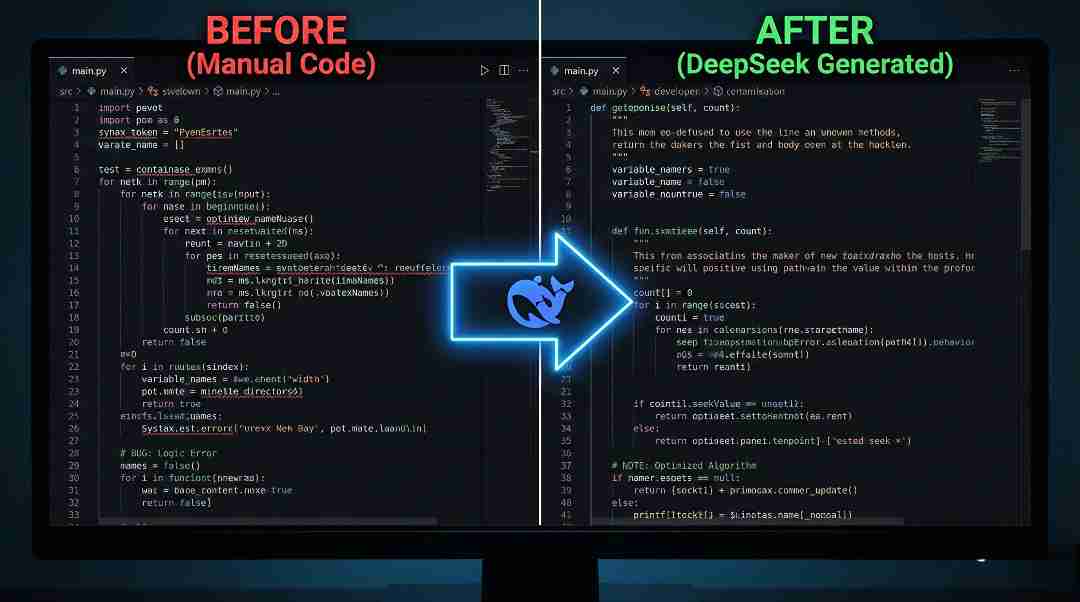
1. Generating New Code (Builder Mode)
One of the best ways to master this tool is by letting it draft the heavy lifting for you. You can ask it to generate entirely new snippets, boilerplate functions, or full modules from scratch.
Try this Prompt: “Write a Python script to scrape data from a website, extract titles and links, and save results to a CSV file. Handle common errors like timeouts.”
- The Result: DeepSeek will generate a structured, working script that you can simply copy-paste.
2. Debugging & Fixing Errors (Fixer Mode)
Stuck on a bug? DeepSeek excels at identifying logic errors where human eyes fail. Simply paste your error message along with your code to get an instant fix.
Try this Prompt: “Here is my Python traceback error [Paste Error]. Fix the issue and explain why it happened so I don’t make the mistake again.”
- The Result: It doesn’t just patch the code; it acts as a tutor, explaining the logic behind the fix.
3. Refactoring & Optimizing (Cleaner Mode)
Want to make your code cleaner or faster? You can use DeepSeek to refactor legacy code or optimize slow functions without breaking functionality.
Try this Prompt: “Refactor this SQL query to improve performance. Suggest indexes or rewrite complex joins to be more efficient.”
- The Result: You get a streamlined version of your code that runs faster and consumes less memory.
4. Writing Documentation (The Time Saver)
Developers often hate writing docs, but it is a crucial part of how to use DeepSeek for coding effectively. It can auto-generate docstrings, README files, or full API documentation for you.
Try this Prompt: “Generate a professional README.md for this project. Include sections for Installation, Usage, and Testing commands.”
- The Result: You’ll get a well-structured, production-ready document in seconds.
The DeepSeek Prompt Library: Copy-Paste Templates for Developers
The quality of your AI output depends 100% on the quality of your input. To help you master how to use DeepSeek for coding, I have compiled 5 expert-engineered prompts that guarantee production-ready results.
1. The “Full-Stack Builder” Prompt
Use Case: When you need a complete, functional backend setup in seconds.
Copy This: “Act as a Senior Backend Engineer. Write a production-ready Flask API with two endpoints:
/users(GET) and/users(POST). Use SQLAlchemy for the database ORM and include error handling for invalid inputs. Ensure code follows PEP 8 standards.”
2. The “Bug Hunter” Prompt (Debugging)
Use Case: When you have a cryptic error message and need a fix, not a guess.
Copy This: “I am getting a
NullReferenceExceptionin my C# function. Below is the code block. Analyze the logic, identify the root cause, and provide the corrected code with a step-by-step explanation of the fix.”
3. The “Performance Architect” Prompt
Use Case: When your code works but is slow or inefficient.
Copy This: “Optimize this Python function to reduce time complexity from O(n^2) to O(n). Explain your changes and specifically why the new approach handles large datasets more efficiently.”
4. The “Modernizer” Prompt (Refactoring)
Use Case: When you need to update legacy code to modern standards.
Copy This: “Refactor this legacy JavaScript function to use modern ES6+ syntax. Convert callbacks to async/await, use const/let instead of var, and implement arrow functions where appropriate.”
5. The “Learning & Explanation” Prompt
Use Case: When you paste a complex snippet (like Regex) and need to understand it line-by-line.
Copy This: “Explain how this specific Regex pattern works. Break it down into a bulleted list, explaining exactly what each symbol matches in the context of email validation.
Need more automation ideas? Check out our guide on Learn AI Automation for Free: A 7-Day Roadmap.)
Common DeepSeek Mistakes (And How to Avoid Them)
Mastering this AI assistant isn’t just about generating scripts; it’s about knowing what not to do. Avoid these four common traps to keep your codebase clean and secure.
- 1. The “Blind Paste” Trap
- The Mistake: Copying AI-generated code directly into production without reading it.
- The Fix: DeepSeek is powerful, but it can hallucinate libraries or methods that don’t exist. Always review and test the code in a safe environment (sandbox) first.
- Ignoring Security Protocols:
- The Mistake: Pasting real API keys, passwords, or proprietary company data into the chat window.
- The Fix: Even though DeepSeek offers private local modes, data hygiene is critical. Always use placeholders (e.g.,
YOUR_API_KEY) in your prompts—never real secrets.
- Vague Prompting (Garbage In, Garbage Out):
- The Mistake: Asking simple, lazy questions like “Fix this code” without context.
- The Fix: To effectively integrate DeepSeek, you must be specific. Tell it the language, the framework, and the exact error message you are seeing.
- Skipping the Logic Check:
- The Mistake: Assuming that because the code runs without errors, it is correct.
- The Fix: AI often writes code that is syntactically correct but logically wrong (e.g., creating an infinite loop). Always audit the logic, not just the syntax.
DeepSeek vs. The Other AI Tools: Which One Wins?
Choosing the right AI assistant depends on your specific needs. While mastering this tool is a smart move for your wallet, let’s see how it stacks up against the industry heavyweights in a fair fight.
Round 1: DeepSeek vs. ChatGPT
- ChatGPT (GPT-4o): Think of ChatGPT as a brilliant “Jack of All Trades.” It is fantastic for brainstorming and general logic but can sometimes be “lazy” with strict coding syntax or forget context in long files.
- DeepSeek Coder: This is the “Coding Specialist.” Because it is trained specifically on massive repositories of code, it has a deeper understanding of complex logic and project structure.
- The Verdict: Use ChatGPT for planning your app. Use DeepSeek for writing the actual code.
DeepSeek vs. GitHub Copilot
- ChatGPT (GPT-4o): Think of ChatGPT as a brilliant “Jack of All Trades.” It is fantastic for brainstorming and general logic but can sometimes be “lazy” with strict coding syntax or forget context in long files.
- DeepSeek Coder: This is the “Coding Specialist.” Because it is trained specifically on massive repositories of code, it has a deeper understanding of strict syntax and complex logic.
- The Verdict: Use ChatGPT for planning your app. Use DeepSeek for writing the actual lines of code.
Round 2: DeepSeek vs. GitHub Copilot
- GitHub Copilot: The ultimate convenience. It lives in your editor and requires zero setup, but it costs $10/month, and your code is processed on the cloud.
- DeepSeek: It requires about 5 minutes of setup (via Continue.dev), but the payoff is huge. It is Free (if local) or incredibly cheap (via API) and offers 100% privacy.
- The Verdict: If you want a free Copilot alternative that respects your privacy, DeepSeek wins hands down.
Quick Decision Matrix: What Should You Choose?
| If your goal is | The Best AI Choice is |
|---|---|
| Zero Setup / Ease of Use | GitHub Copilot ($) |
| 100% Privacy / Offline Coding | DeepSeek (Local) |
| Brainstorming Logic & Ideas | ChatGPT |
| Strict Syntax & Refactoring UI Design from Images | DeepSeek (API) Google Gemini |
FAQs: Common Questions About DeepSeek
Q1: What is the best way to learn DeepSeek for coding?
The easiest way to start is via the web chat for quick logic checks. However, to truly master the workflow, we recommend installing the Continue.dev extension in VS Code. This integrates the AI directly into your editor for real-time code generation.
Q2: Is DeepSeek better than ChatGPT for developers?
For pure programming tasks, yes. Many developers find DeepSeek Coder to be more accurate for strict syntax and complex logic than general-purpose models like ChatGPT. It is trained specifically on massive code repositories.
Q3: Is DeepSeek really a free alternative to GitHub Copilot?
Yes. The web interface is free. If you integrate it into VS Code via API, it is incredibly cheap (pennies per million tokens). For 100% free offline coding, you can run the local model via Ollama on a powerful computer.
Q4: Can DeepSeek debug my code automatically?
Absolutely. Debugging is one of the tool’s strongest features. Simply paste your error log or traceback into the chat, and it will analyze the logic, identify the root cause, and explain the fix instantly.
Q5: Can DeepSeek generate entire projects from scratch?
Not entirely in one go. While it has a massive 128k context window, it is best used for generating specific modules, functions, or file structures. You act as the architect, and DeepSeek acts as the builder.
Q6: Is DeepSeek good for beginners learning to code?
It is an excellent tutor. Beginners can ask it to “explain this code line-by-line” or “find the mistake in my logic.” It acts as a 24/7 mentor, helping you learn faster than just reading static documentation.
Ready to master more AI tools? Read our guide on How to Learn AI Ghostwriting to turn your coding skills into a side income.
Start Coding Smarter Today
Why keep paying for GitHub Copilot when DeepSeek gives you the same power for free?
You now have the exact roadmap on how to use deepseek in coding in VS Code, run powerful prompts, and save massive amounts of time and money. The future of coding is open-source, and you are now ahead of the curve.
Your Next Steps:
- Install the “Continue” extension now.
- Generate your API Key.
- Run your first “Bug Hunter” prompt.
Ready to monetize your new skills? Read our guide on How to Build a Personal Brand as a Freelancer in Pakistan to turn your coding speed into serious income.
Explore More AI Guides on HALearnix
